SFR Analytics and Hub
Add Analytics Sites to the Hub
This guide explains how to connect a WordPress site running SFR Analytics to SFR Analytics Hub. The SFR Analytics Hub can be obtained for free (for three sites) from WordPress. More sites can be added with a licence available from Support from Richard – SFR Analytics and SFR Analytics Hub
1) Before You Start
On each site you want to connect (feeder site), make sure:
SFR Analyticsis installed and active.- You have a WordPress user account with the Administrator role.
- Application Passwords are available (WordPress core feature under user profile).
Important: The Hub connection uses authenticated REST requests that require administrator-level capability (
manage_options).
If you use a non-admin account, connection tests can fail with403 rest_forbidden.
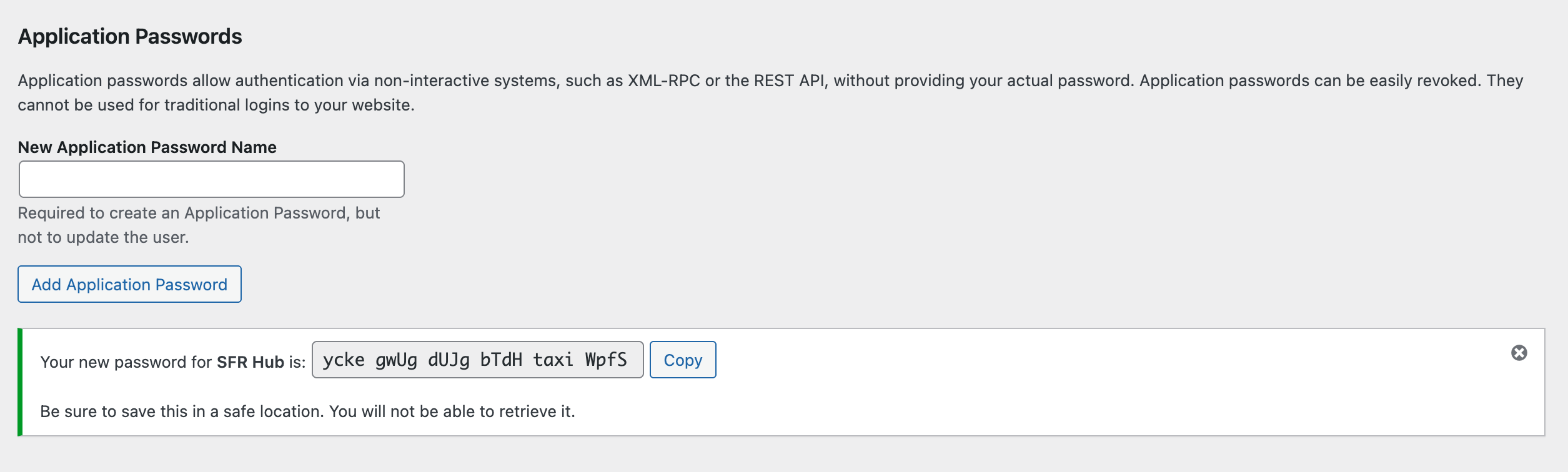
2) Create an Application Password on the Feeder Site
- Log in to the feeder site as an Administrator.
- Go to
Users > Profile. - Scroll to Application Passwords.
- Enter a name (example:
SFR Analytics Hub). - Click Add New Application Password.
- Copy the generated password immediately and save it securely.
You will use:
- WordPress username
- Application Password (generated above)
3) Add the Site in SFR Analytics Hub
On your Hub site:
- Go to
Analytics Hub > Sites. - Click Add Site.
- Enter:
- Site Name
- Site URL (full URL, include
https://) - WordPress Username (administrator account from feeder site)
- Application Password
- Click Test Connection.
- If successful, click Add Site.
4) Confirm Data Sync
After adding the site:
- Go to
Analytics Hub > Dashboard. - Click Refresh to pull latest data.
- Check that stats and charts begin populating.
5) Common Errors and Fixes
Error: HTTP 403 / rest_forbidden
Cause:
- The username/password belongs to a user that is not an Administrator.
Fix:
- Create/use an Application Password for an Administrator account on the feeder site.
- Update the site credentials in Hub.
Error: 401 / “You are not currently logged in”
Cause:
- Security/auth plugin is blocking Application Password REST auth.
Fix:
- Check security plugin settings and allow Application Password REST access.
- Retest the connection.
Error: Route not found (404)
Cause:
- SFR Analytics on feeder site is outdated or inactive.
Fix:
- Update/activate SFR Analytics, then retest.
6) Best Practices
- Use one dedicated admin account for Hub connections on each feeder site.
- Keep Application Passwords unique per site.
- Use HTTPS on all sites.
- If credentials change, update them in
Analytics Hub > Sitesimmediately.
7) Need More Than 3 Sites?
The WordPress.org Hub edition supports up to 3 connected sites.
If you need to connect more than 3 sites:
- Use SFR Analytics Hub Pro from:
https://supportfromrichard.co.uk/sfr-analytics/- The Pro build keeps the same core dashboard and reporting workflow, with a higher site limit. The features in the free and pro versions are the same, and there is no loss of data when you migrate to the Pro version
